Before you start
- Salesforce Sales Cloud in Enterprise, Unlimited or Performance Edition, with My Domain deployed and Salesforce Sites available.
- A LinkedIn Sales Navigator seat on the LinkedIn account each rep connects. Searches and InMails go through Sales Navigator.
- One Gmail or Outlook mailbox per rep. Emails go out from that mailbox, not through Salesforce.
Prospect Grid is installed from the Salesforce AgentExchange and set up once by your Salesforce admin. Basic setup is included in every plan; see Implementation.
Step 1: Connect LinkedIn and your mailbox
Open the Prospect Grid app from the App Launcher and go to the Setup Wizard tab. Under Step 1, click Connect LinkedIn, then Connect Google or Connect Outlook. Each button opens a hosted sign-in page outside Salesforce and brings you back to the wizard, so no password or key is ever entered in Salesforce. A rep holds one mailbox: once Google is connected, Outlook is not needed, and the other way round.
Since version 1.8, connecting an account also switches on its tracking, and the row shows Tracking enabled. Tracking is what brings replies, read receipts and email opens back into the grid. If a row shows Enable LinkedIn Tracking, Enable Google Tracking or Enable Outlook Tracking instead, click it once.
Step 2: Prepare your templates and signature
Templates are optional, but they turn each step into a few clicks. Create email and LinkedIn templates in the Setup Wizard, or later from any send dialog. The placeholders Contact Full Name, Contact First Name, Contact Last Name, Account Name, Contact Title and Outreach Owner are filled for each contact when the template is selected. Templates a Salesforce admin creates are available to every rep; a rep's own templates are visible to that rep and to the admins.
An admin can also save one company signature, with a logo, that fills in each rep's name, title, phone, mobile and email. Each rep opens Edit Signature, finds the company signature filled in and saves it as their own. From then on it is added under every email the rep sends.
Step 3: Build a grid from Sales Navigator
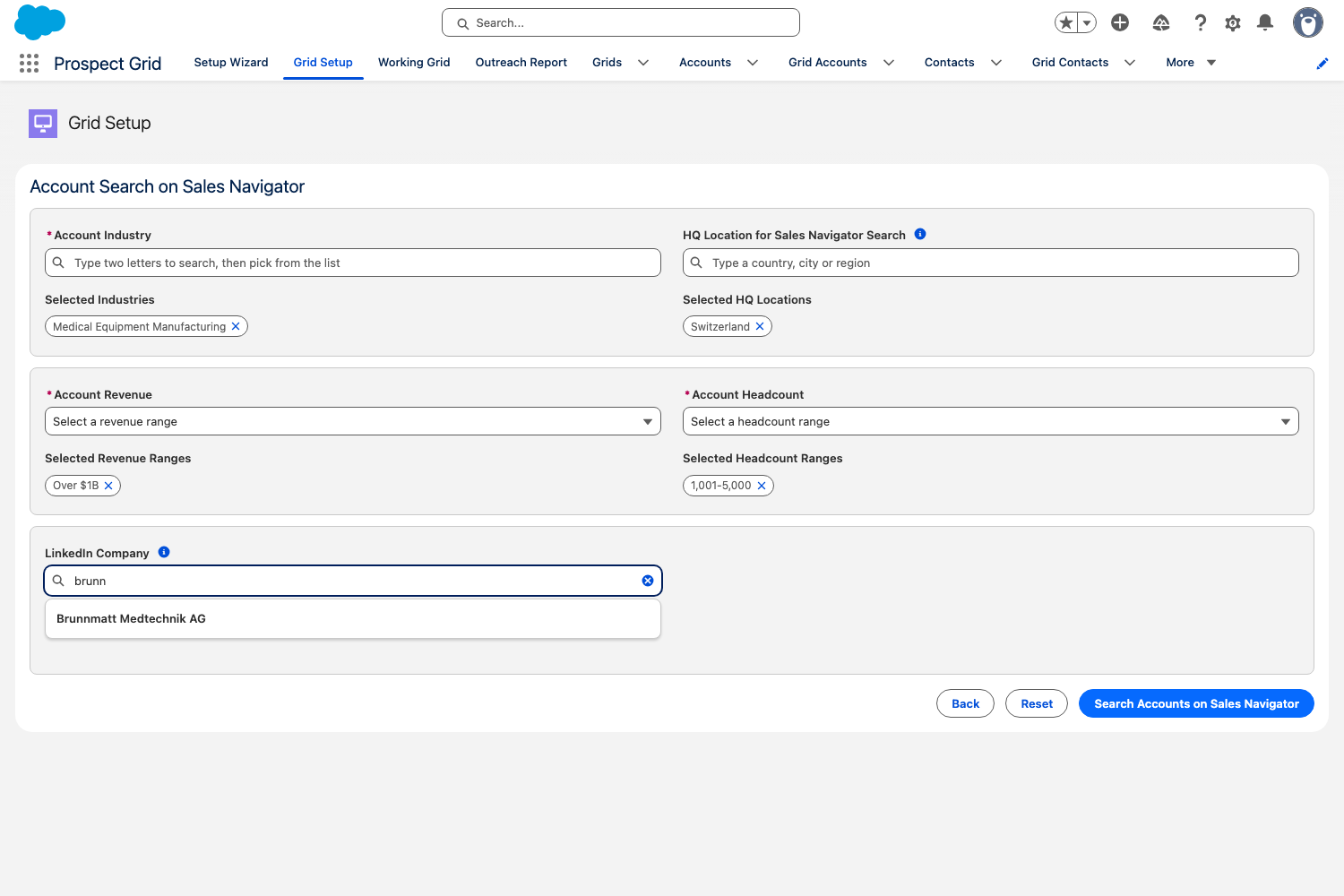
Grid Setup offers two routes. Start from the accounts you already have: pick them in Account Search in Salesforce, and Prospect Grid looks each one up on Sales Navigator for you to confirm. Or find new accounts: search Sales Navigator by industry, revenue, headcount and headquarters location, or name the companies you already know under LinkedIn Company. One search lists up to 80 companies.
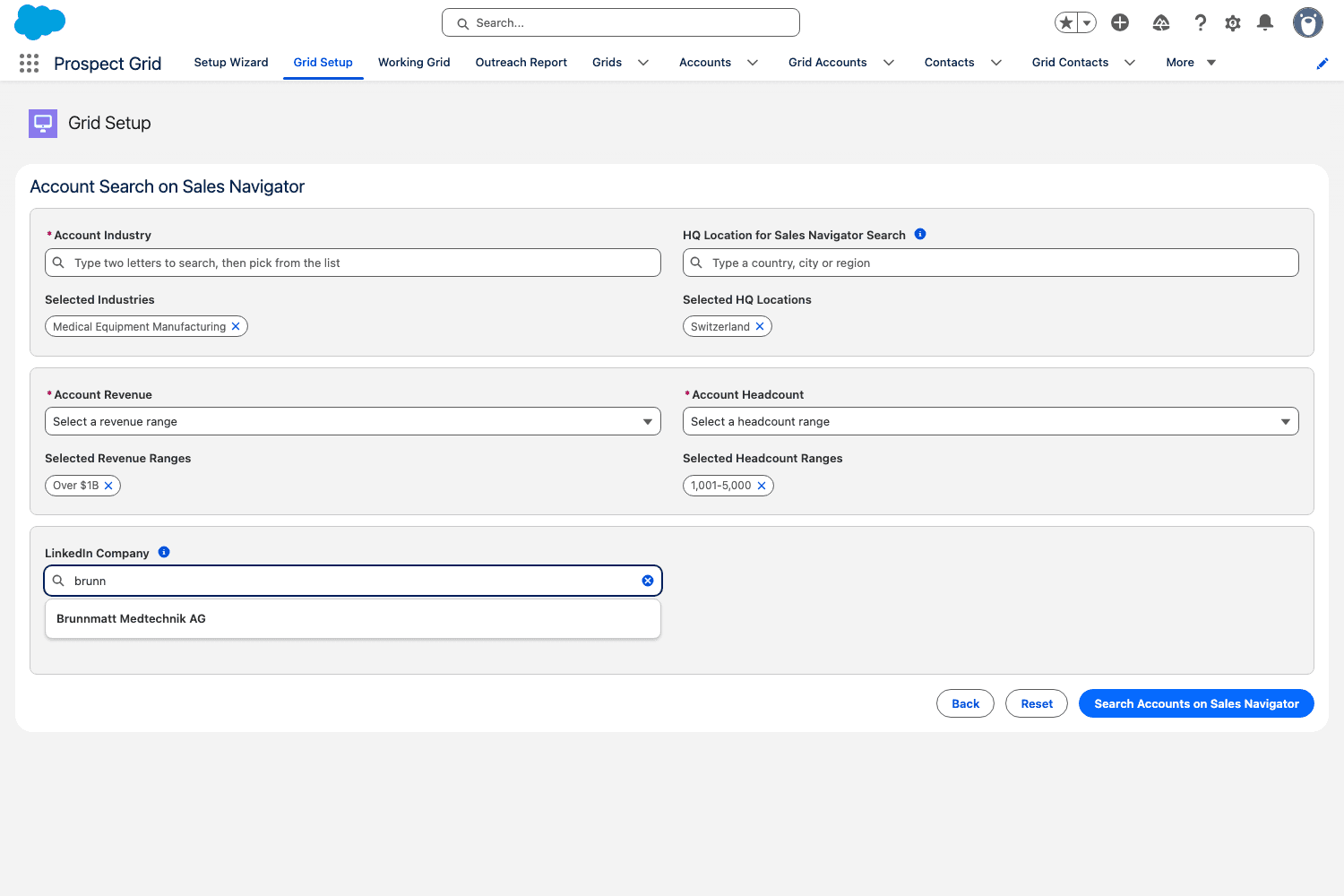
Finding new accounts on Sales Navigator, inside Salesforce. Step 4: Choose the people and import them
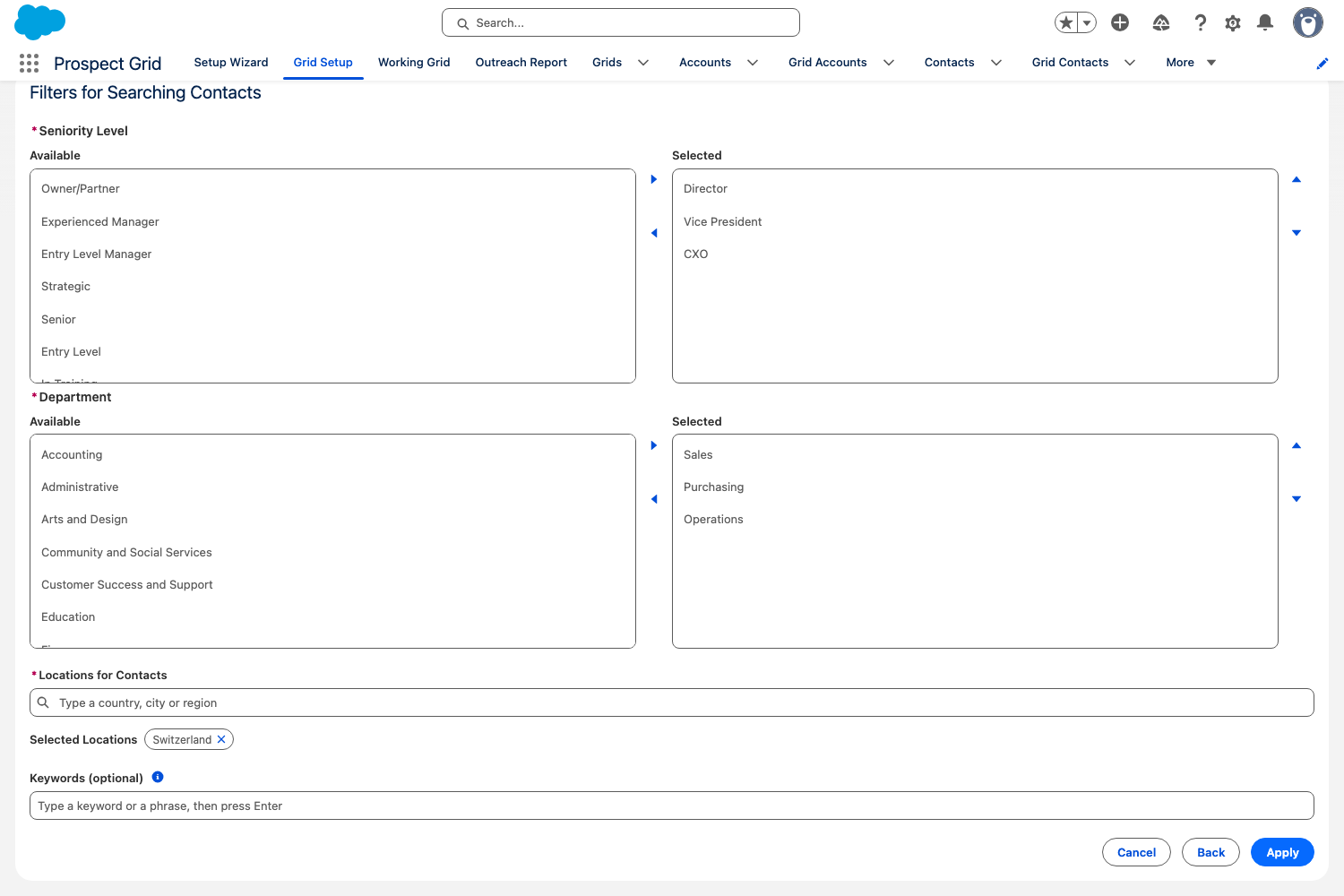
Then filter the people in Filters for Searching Contacts: seniority level, department and location, plus up to 10 keywords that are searched across the whole LinkedIn profile, not only the job title. Results come 100 per page. Tick the contacts you want on any page, choose the outreach owner and import them into a new grid or an existing one.
Accounts and contacts that already exist in Salesforce are matched by name or LinkedIn profile and updated instead of created twice. An account's billing address is filled from LinkedIn only where it is empty. To add a single person later, use Add a Contact in the Working Grid and paste their LinkedIn or Sales Navigator profile URL.
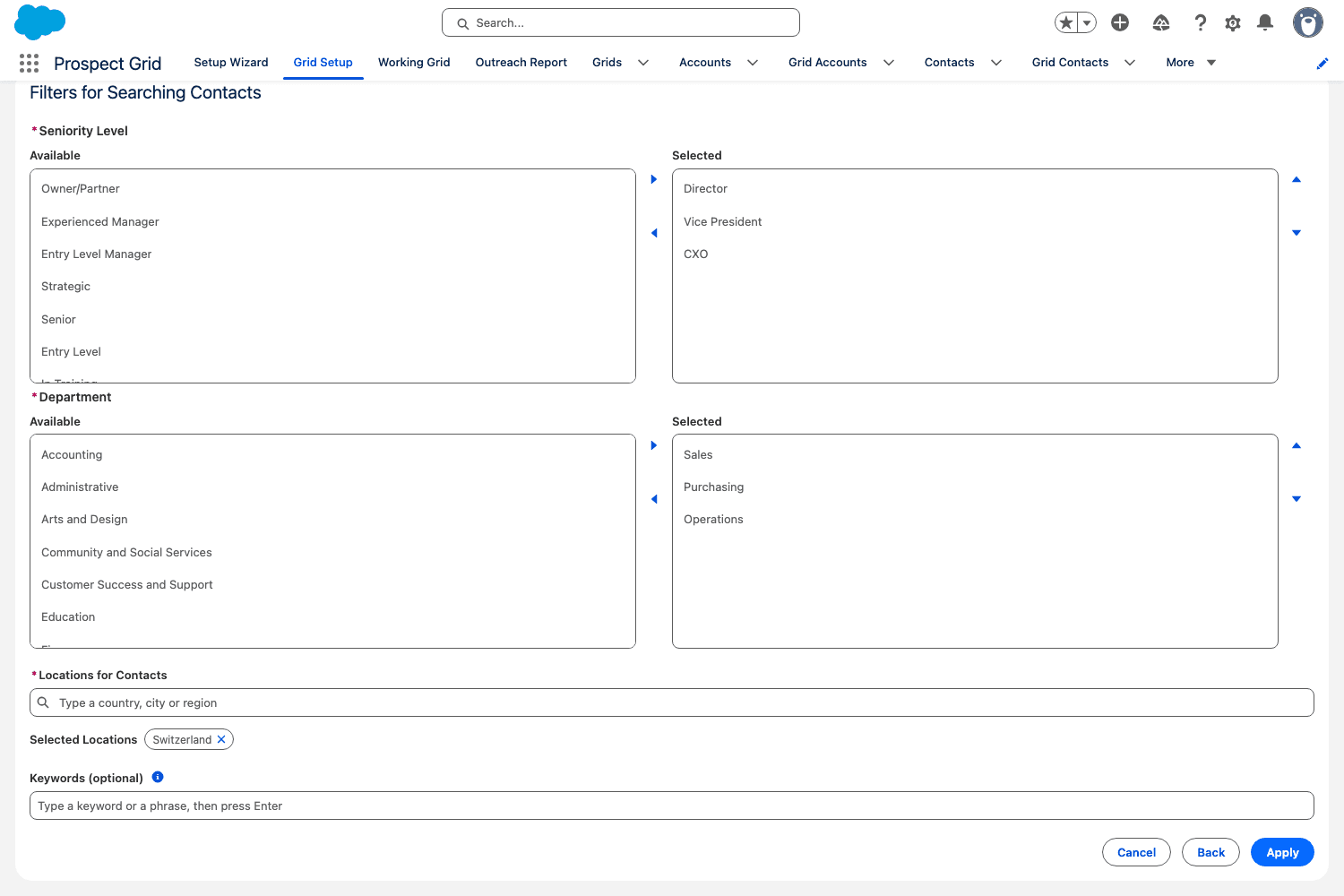
Filtering the people at the chosen accounts. Step 5: Send the connection requests
Every sequence starts on LinkedIn. In the Working Grid, Send LinkedIn Invitations invites every contact that matches the current filters and is neither connected nor waiting on an invitation, up to 100 contacts per send. A panel counts the run as it goes. LinkedIn applies its own limits per account on top of that; while LinkedIn holds requests back, the run waits and continues by itself. You can also send the first invitations straight from Grid Setup when you add the contacts to a grid.
Accepted invitations are not reported as they happen. A nightly job asks for them and marks the row Connected, and a second nightly job withdraws invitations that have been pending for more than 30 days. Your Salesforce admin schedules both jobs once during setup.
Step 6: Send LinkedIn messages and emails from the grid
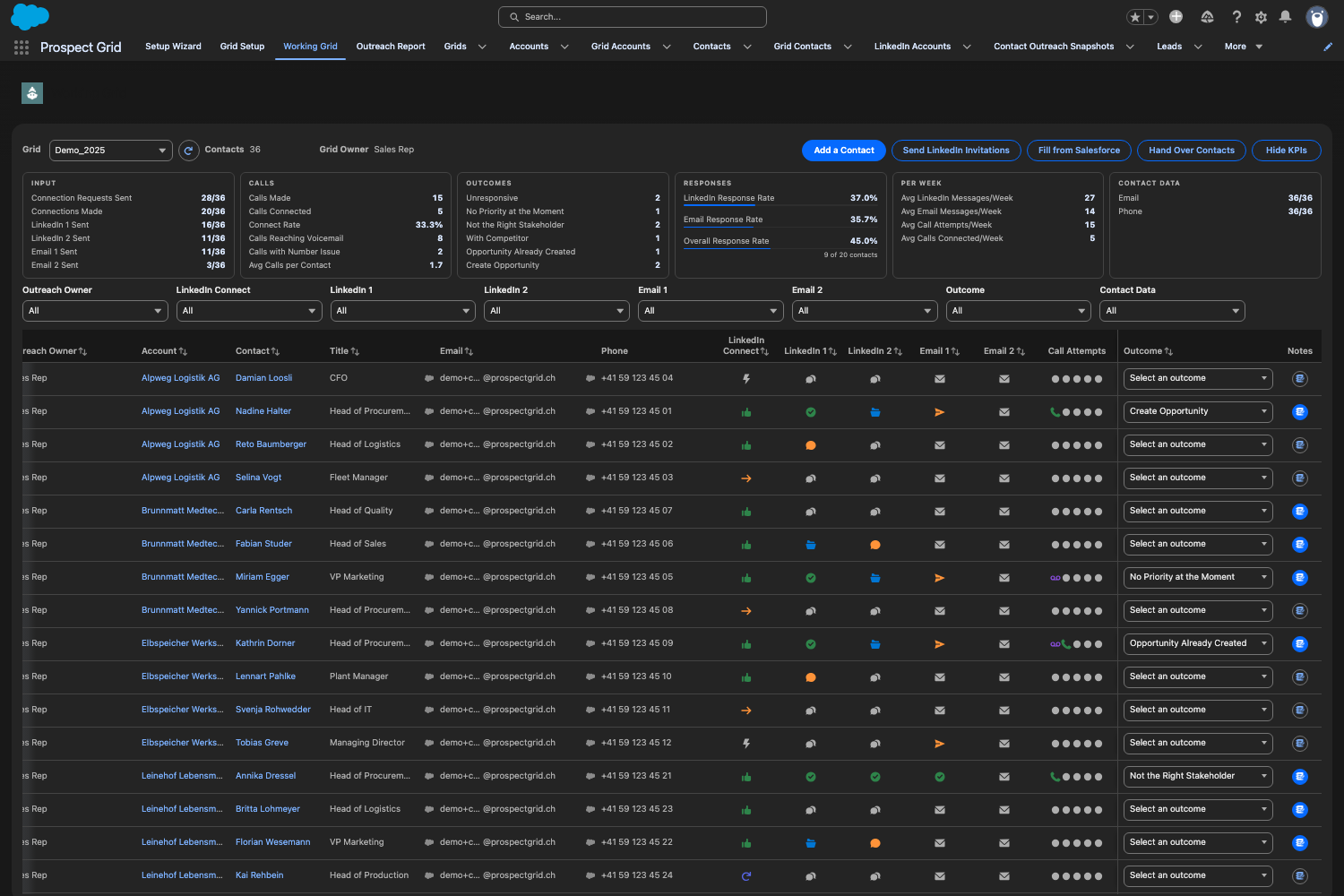
Each contact is one row, and each step has its own column: LinkedIn 1, LinkedIn 2, Email 1 and Email 2. Click a step in the row to open its send dialog, select a template, adjust the text and send. The second message of a channel opens once the first one has gone out.
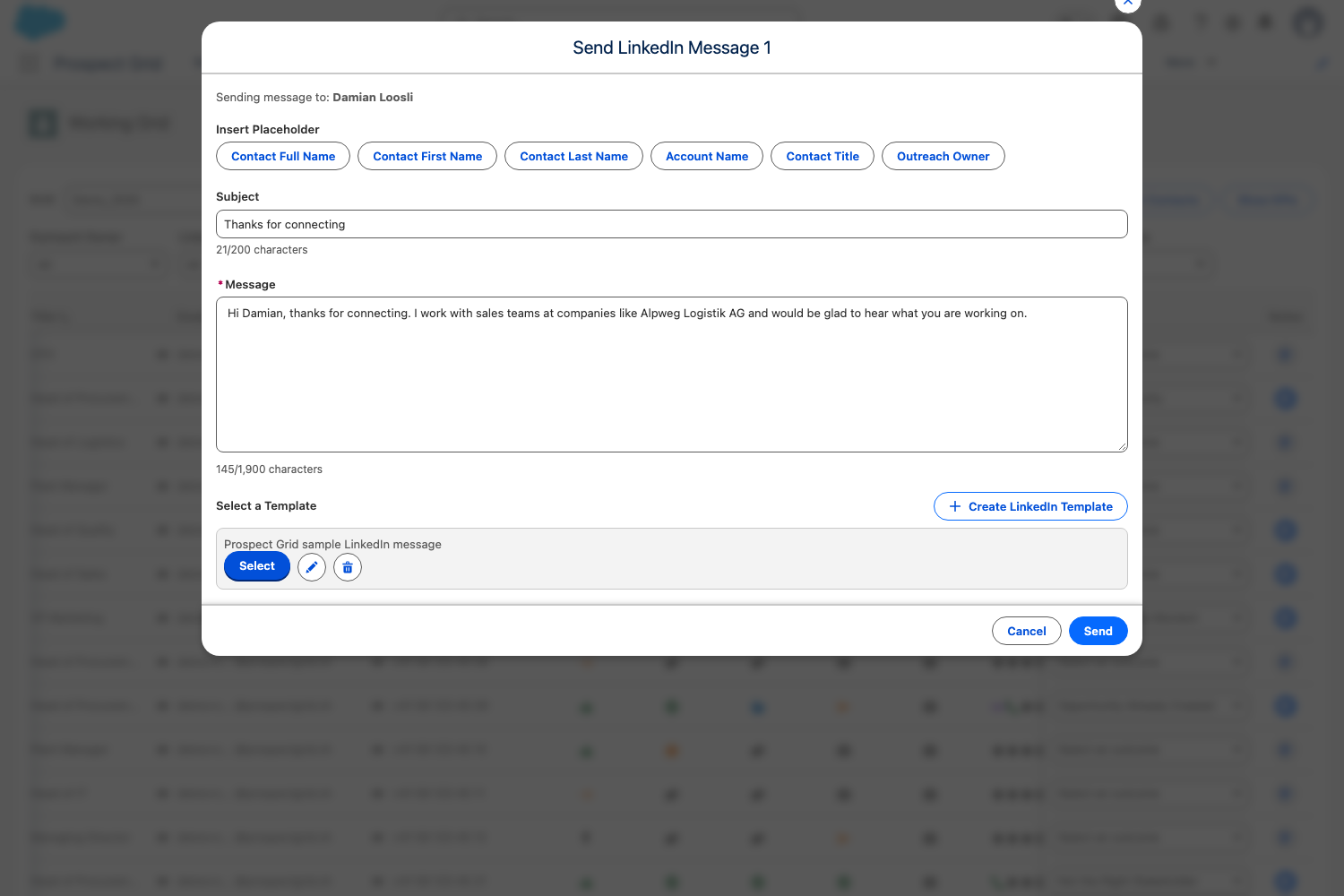
LinkedIn messages go out through Sales Navigator as InMail, which takes a subject of up to 200 characters and a message of up to 1,900. Counters under both fields show where you are, and Send refuses a text that is too long or still holds a placeholder the contact cannot fill.
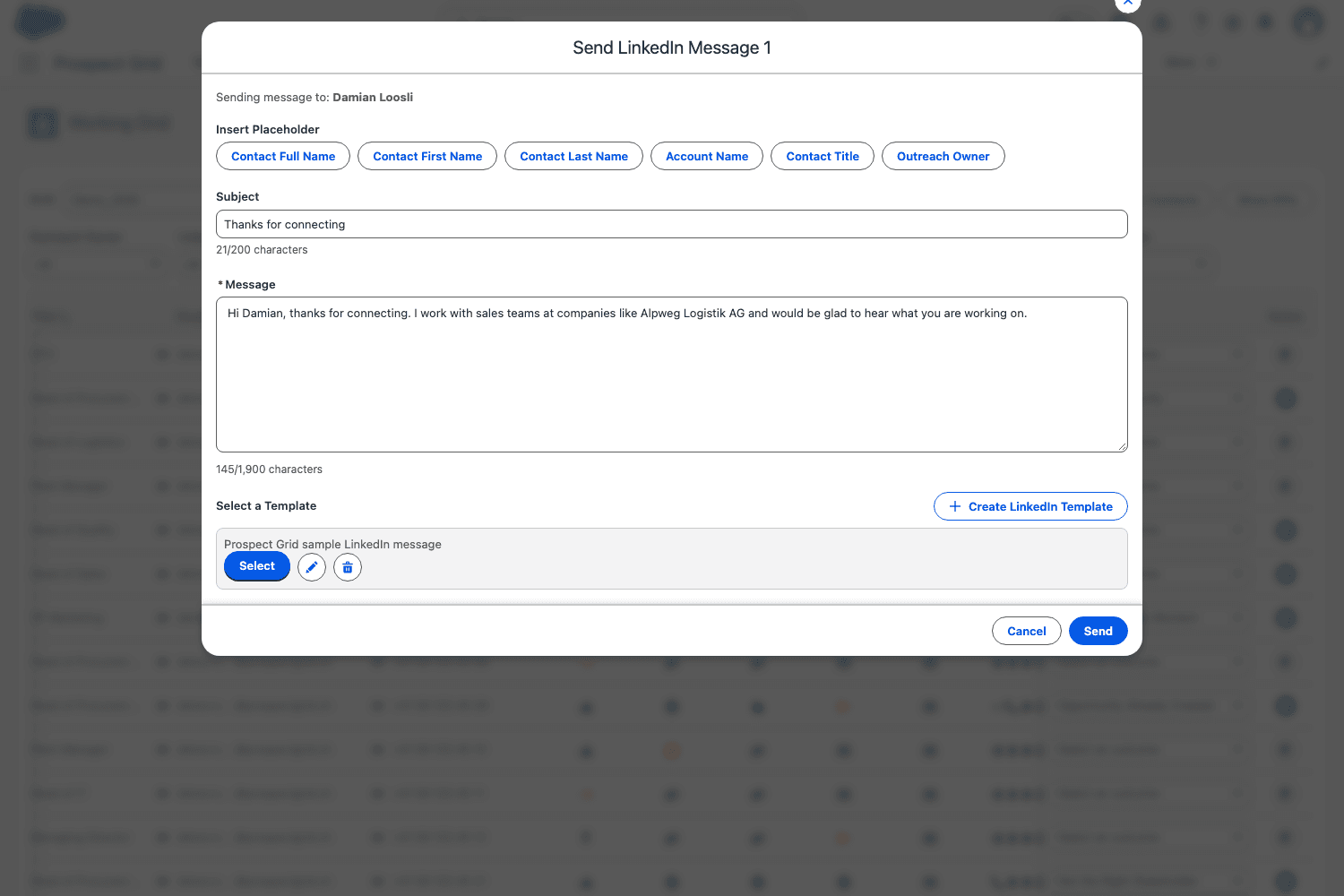
LinkedIn message 1, from a template, with the InMail character counters. Step 7: Check the email before it goes out
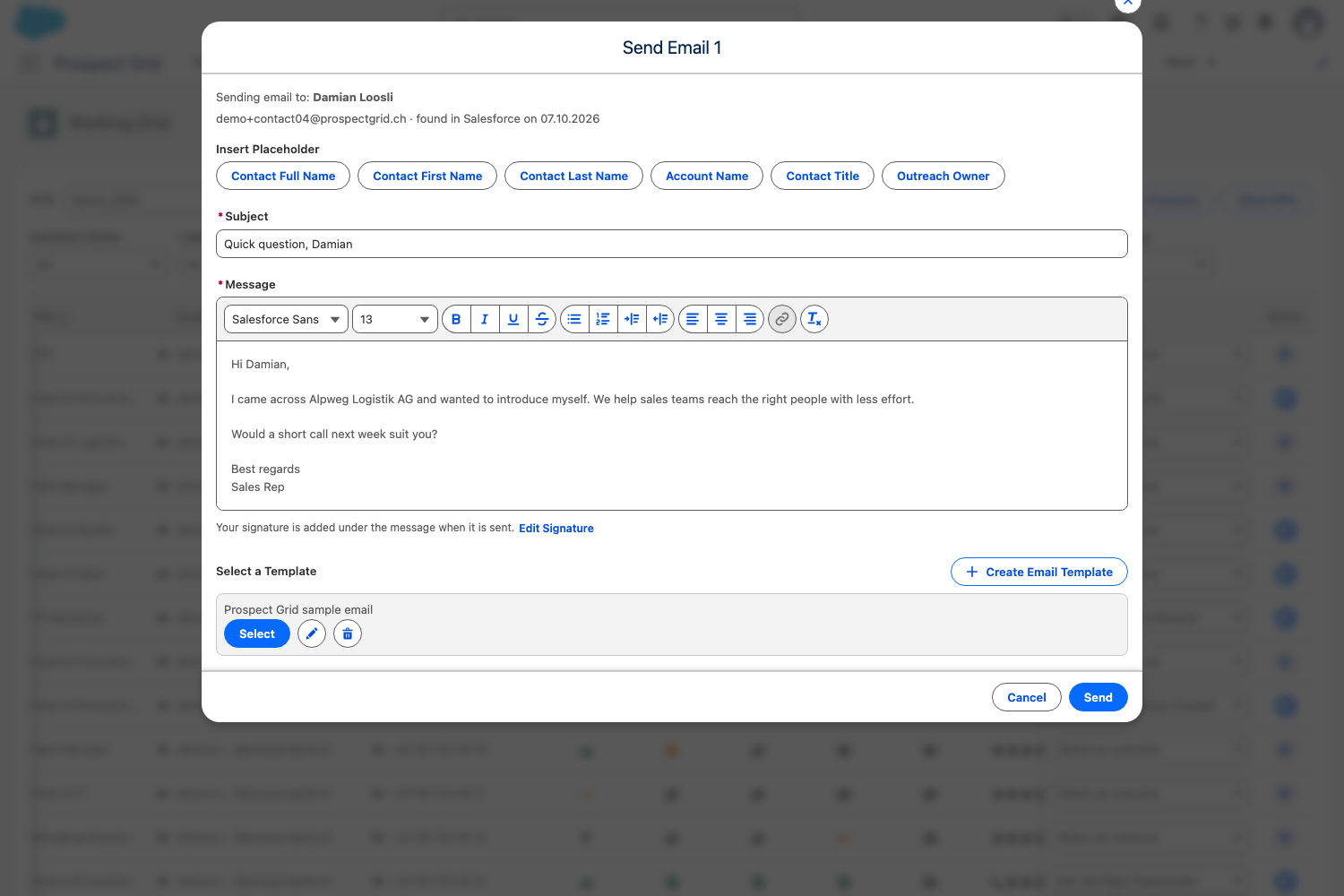
Emails go out from the rep's own Gmail or Outlook mailbox, not from Salesforce, with the rep's signature added, so replies land in the rep's inbox as usual. Before each send, the dialog shows the address and where it came from, for example found in Salesforce on a given day. It blocks the send when the contact opted out of email, or when the contact's country is on your admin's list of countries without email outreach, and it checks both again at the moment of sending.
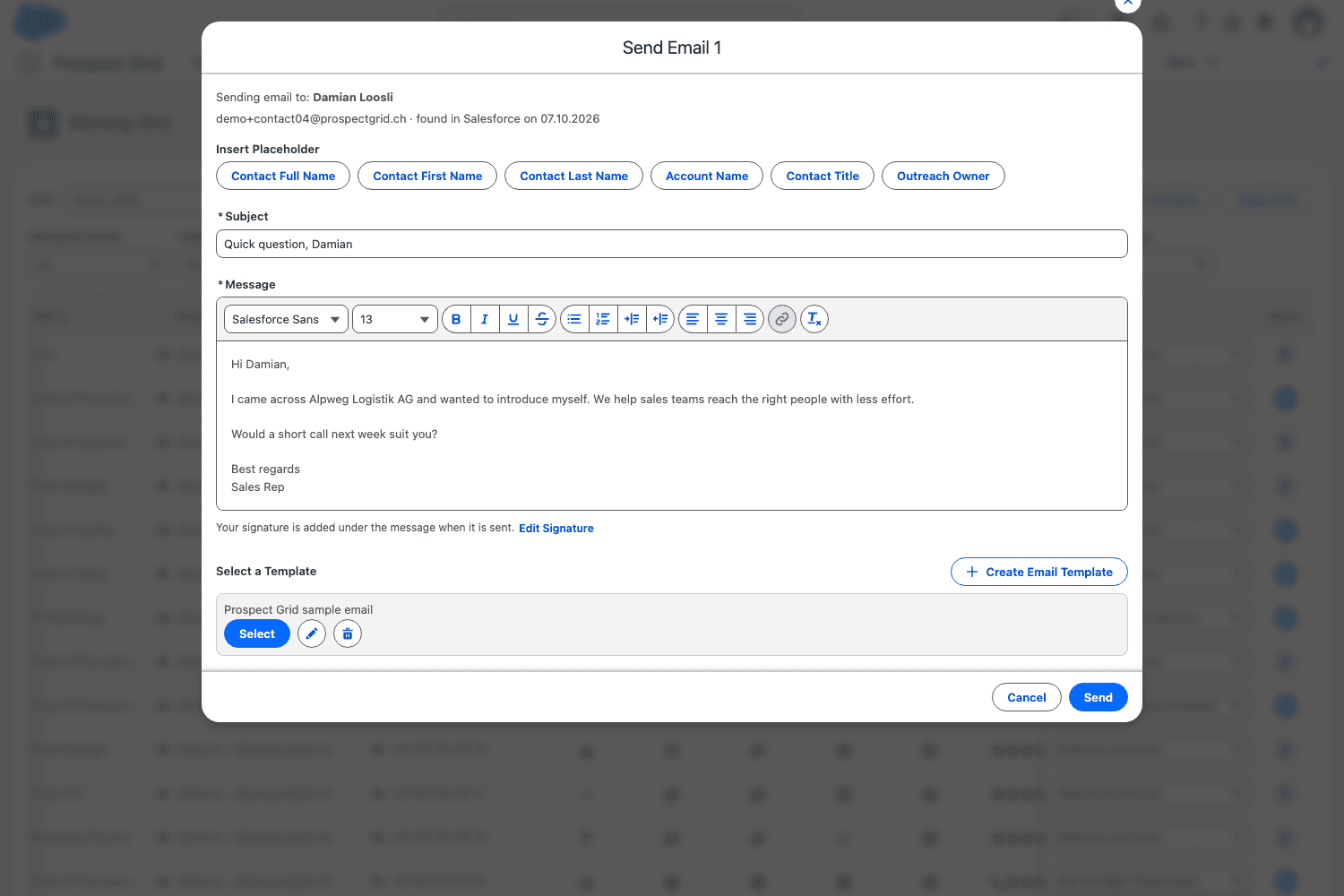
Email 1, with the address and its source above the message and the signature added on sending. Step 8: Log every call attempt
The Call Attempts column holds five attempts per contact. Click one, pick the result, Call connected, Call on voice mail or Issue with number, and save. The dialog shows the number and where it came from, and warns when the contact is marked Do Not Call, but recording an attempt is never blocked. Calling from inside the grid is available as a telephony integration.
Step 9: Set the outcome
When a conversation has a result, set the contact's Outcome. There are six: Create Opportunity, Opportunity already created, Not the right stakeholder, No Priority at the moment, With Competitor and Unresponsive. The outcome is copied into the status of the Lead that Prospect Grid created for the contact, and Create Opportunity notifies the rep who set it by email. A later reply from the contact clears Unresponsive by itself.
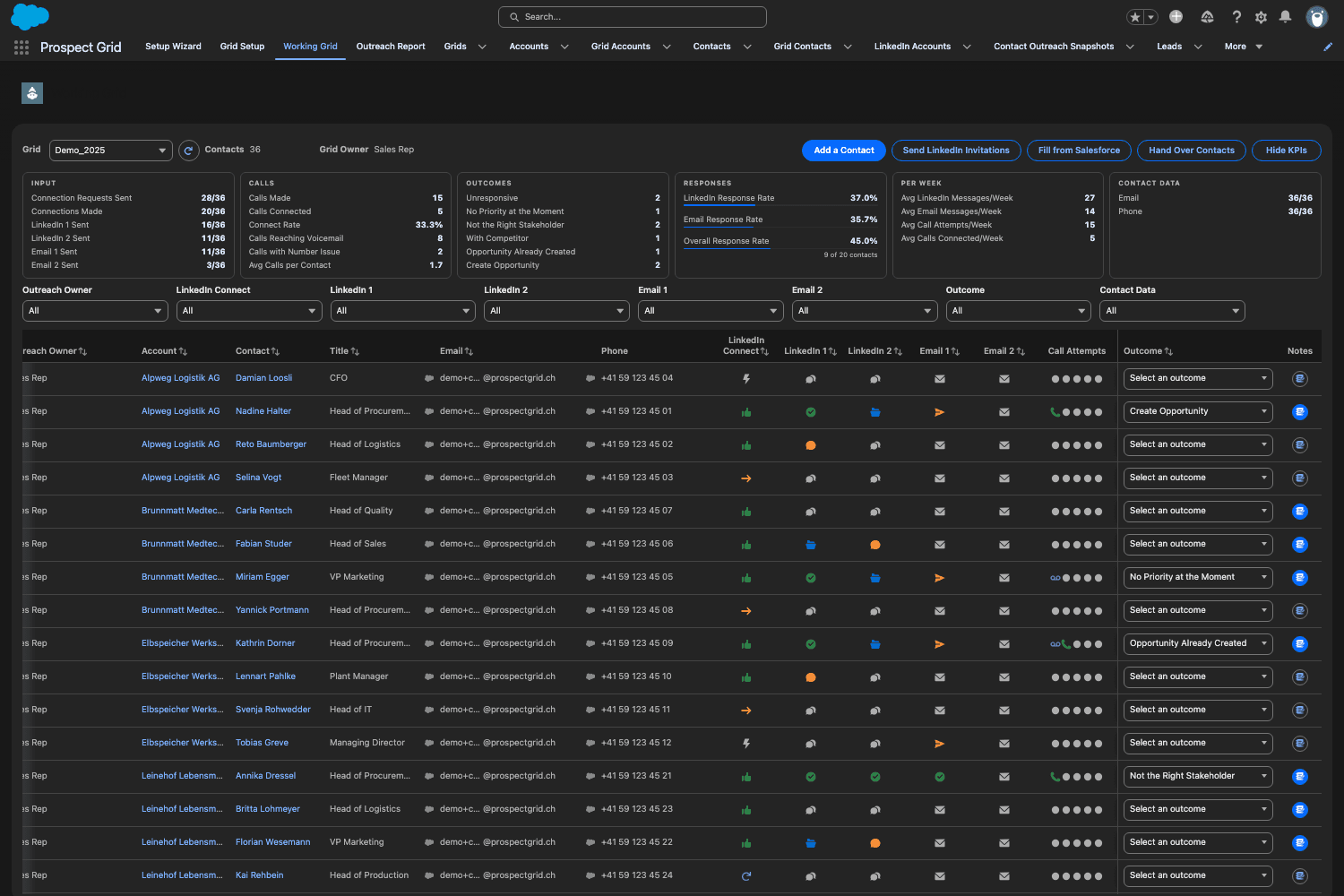
Every step and the outcome per contact in one row. Demo org, invented names. Step 10: Track results per rep and per account
Above the rows, the Working Grid shows the grid's figures: connection requests and messages sent, calls and their results, outcomes, response rates per channel, averages per week, and how many contacts have an email address and a phone number. The Overall Response Rate counts the contacts who answered a message or email or picked up a call, out of those who were messaged, emailed or called. Connection requests do not count.
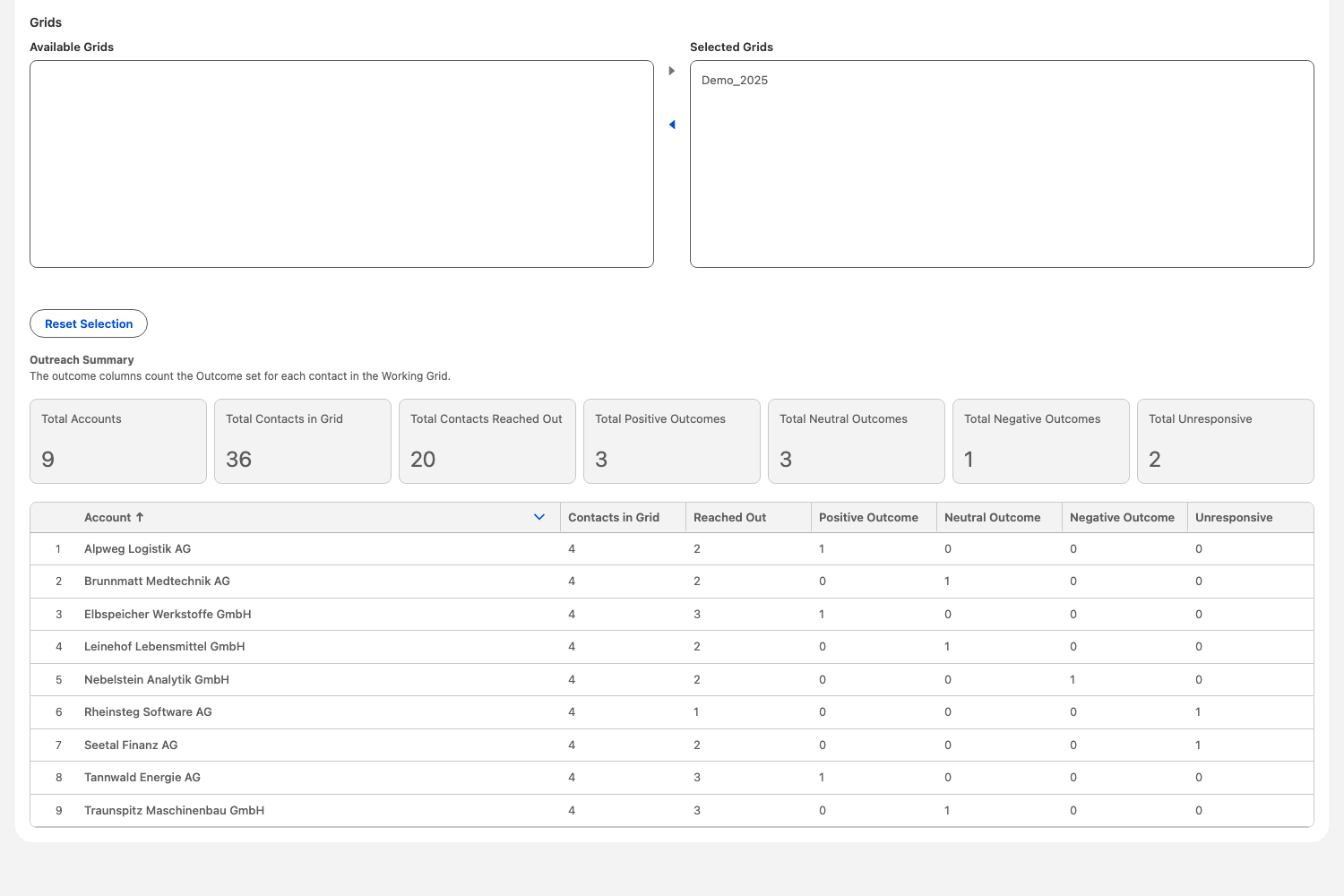
The Outreach Report adds the account view: per account, how many contacts are in the grid, how many were reached, and how many ended positive, neutral, negative or unresponsive. You pick the reps and their grids, including those of a rep who has left.
Every invitation, message, email, reply, call attempt and outcome is also stored as an Outreach Activity. The Prospect Grid Activity dashboard, installed with the app, charts them per rep and per week. It runs as the person looking at it: a rep sees their own activities, a manager the team below them in the role hierarchy.
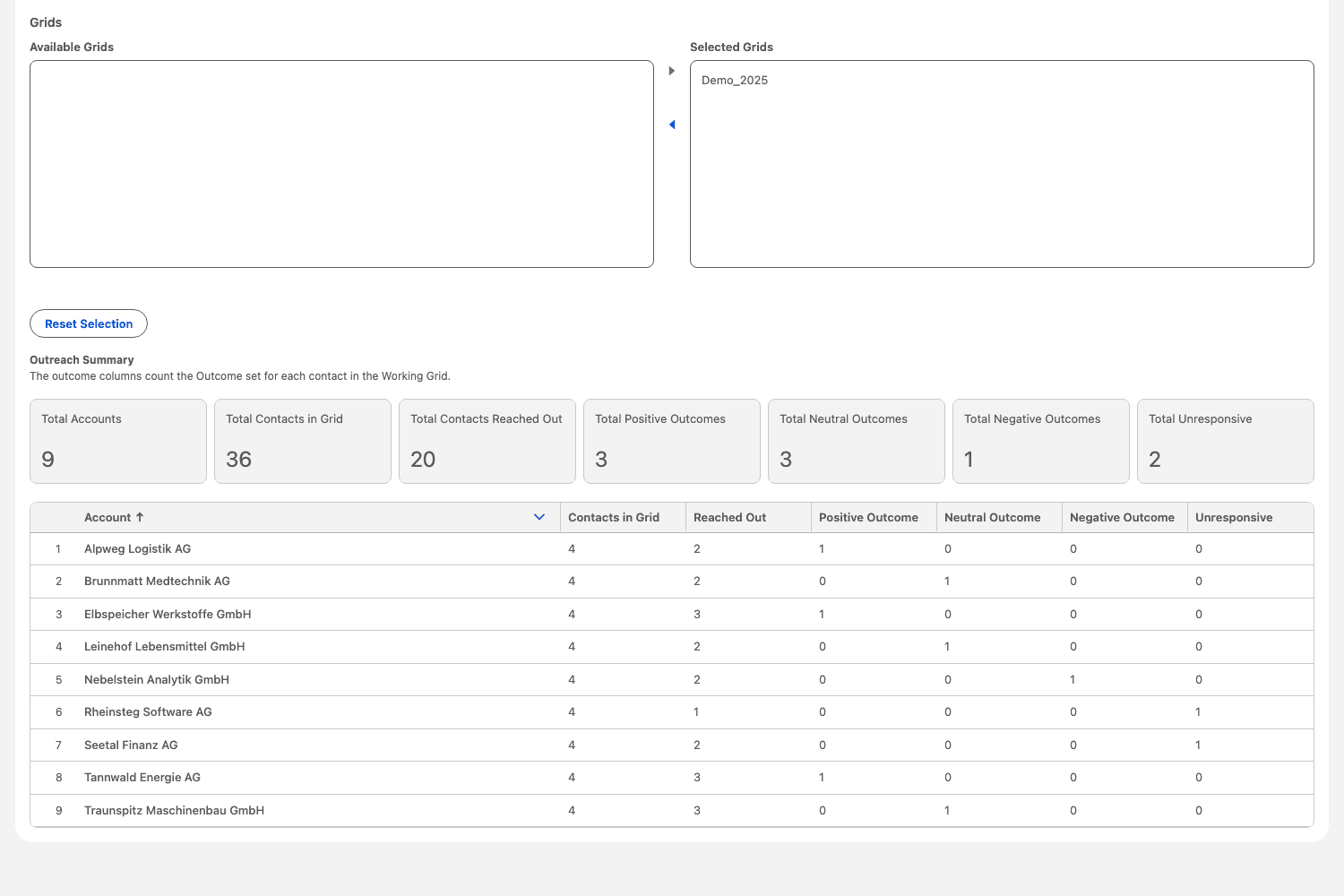
The Outreach Report: outcomes per account. Demo org, invented names. Step 11: Hand contacts over when a rep moves on
A manager moves all of a rep's contacts to a colleague in one step with Hand Over Contacts. Only the outreach owner changes: sends, calls, statuses, outcomes and notes stay on each contact, so the new owner continues where the work stopped, and the activities stay credited to the rep who did them.